Windows 10 support has ended – what now?
Microsoft ended support for Windows 10 on 14 October 2025. Your computer still works, but it is time to decide what comes next. Here are your options, honestly – including when LuxOS is not the right answer.
What the end of support means
After 14 October 2025 Microsoft no longer provides security fixes, feature updates or technical help for Windows 10. The PC keeps starting and your programs keep running. The risk grows slowly: every security hole discovered from now on stays open on computers that do not get Extended Security Updates. For a computer you use for e-mail, online banking or downloading files, that matters more every month.
Your four options
| Option | Cost | Good for | Watch out |
|---|---|---|---|
| Extended Security Updates (ESU) | free when you sync settings with Windows Backup, 1,000 Microsoft Rewards points, or US$30 | buying time until you decide | security fixes only; needs Windows 10 version 22H2 and a Microsoft account with administrator rights; coverage ends on 12 October 2027 |
| Upgrade to Windows 11 | free on eligible PCs | PCs that meet the requirements, people who need Windows-only software | needs TPM 2.0, UEFI with Secure Boot, a processor from Microsoft's list, 4 GB RAM and 64 GB storage; Home needs a Microsoft account |
| Buy a new PC | hundreds of euros or dollars | very old or broken hardware | your current PC may still be perfectly fine |
| Switch to Linux, e.g. LuxOS | free | PCs that cannot run Windows 11, web, office, photos, many games | some Windows programs do not run (see below); LuxOS is young |
Can my PC run Windows 11?
Open Settings › Update & Security › Windows Update on Windows 10 or run Microsoft's PC Health Check app. The usual blockers on PCs from before 2018 are the processor (it must be on Microsoft's list of supported CPUs) and the missing or disabled TPM 2.0. If your PC passes, upgrading to Windows 11 is free and is the easiest path when you depend on Windows software.
LuxOS: a free option for PCs that Windows 11 leaves behind
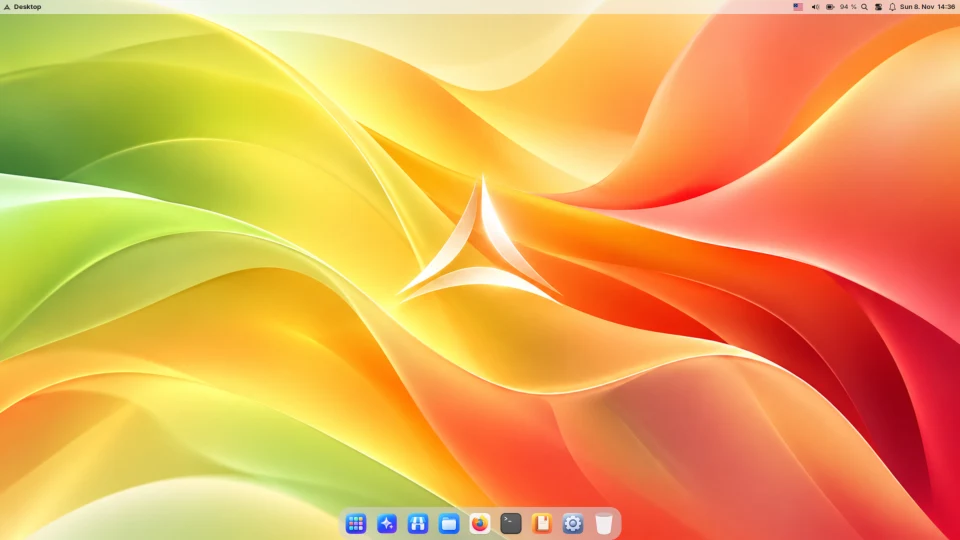
LuxOS is a free Linux system with a desktop in the style you know from the Mac. It needs no TPM, no Microsoft account and no particular processor generation – a 64-bit PC with 4 GB of RAM and a 20 GB disk is enough (full requirements). It gets updates continuously, takes a snapshot before every update so a bad one can be undone, and finds drivers for graphics, Wi-Fi and printers by itself.
What works on LuxOS – and what does not
| You use on Windows | On LuxOS |
|---|---|
| Chrome, Edge, web apps, Gmail, Microsoft 365 on the web | ✓ Firefox comes with an ad blocker built in; Chromium, Google Chrome and other browsers are in the LuxOS Store (Flathub). Web versions of Office, Teams and Google Docs work in the browser. |
| Word, Excel, PowerPoint (desktop) | ≈ LibreOffice opens and saves Office files (the Everyday app set); complex macros and some layouts may differ. Or use Office on the web. |
| Photos, music, videos, USB drives, printers | ✓ Built in. Most printers work without installing a driver. |
| Steam games | ✓ Many Windows games run through Steam's Proton (Gaming app set). |
| Games with kernel-level anti-cheat (e.g. Valorant, Fortnite) | ✗ Do not run on Linux. Check your games on Are We Anti-Cheat Yet? |
| Adobe Photoshop, Premiere, Illustrator, Lightroom | ✗ Adobe makes no Linux versions. Alternatives: GIMP, Krita, Inkscape, darktable, Kdenlive (Video & Photo app set). |
| Other Windows programs | ≈ Some run with Wine via the Bottles app; it depends on the program. Specialised software (accounting, CAD, school or bank tools) may need Windows. |
Need one Windows-only program or game? Install LuxOS next to Windows (dual boot) and choose the system when the computer starts. The installer can use free space on the disk and keeps Windows untouched. Keep in mind that an unsupported Windows 10 is best used only for that one thing.
Try it from a USB stick first – nothing is installed
- Download the LuxOS ISO (2.4 GB) and write it to a USB stick of 4 GB or more with Ventoy, balenaEtcher or Fedora Media Writer.
- Restart the PC and open the boot menu (usually F12, F11, F8 or Esc right after switching on) and choose the USB stick.
- With Secure Boot on, the computer asks once to trust the LuxOS key – a one-minute step with pictures. You do not need to turn Secure Boot off.
- LuxOS starts from the stick. Try the Wi-Fi, sound, the touchpad and your websites. Your disk is not touched until you click Install LuxOS.
Moving your files from Windows
- Before installing, copy Documents, Pictures, Desktop, Downloads and Music to an external drive or a cloud service. A backup is a must.
- Browser: sign in to Firefox or Chrome sync, or export bookmarks and passwords to a file.
- E-mail: webmail just works; for desktop mail, Thunderbird is part of the Everyday app set.
- Dual boot: LuxOS can open the Windows disk in Files. Turn off Fast Startup in Windows first, otherwise the Windows disk may open read-only.
- After installation, set up automatic backups to an external or network disk.
Common questions
Can I keep using Windows 10 after the end of support?
Yes, it keeps working. Without Extended Security Updates it no longer gets security fixes, so new vulnerabilities stay open. Keep it off risky tasks such as online banking, or enrol in ESU while you decide.
Is LuxOS really free?
Yes. The ISO is a free download and there is no paid edition. The optional LuxAI assistant needs a LuxAI account with monthly usage limits; LuxOS works fully without it.
Will LuxOS delete Windows?
Only if you choose to erase the whole disk. The installer can also install LuxOS into free space next to Windows, and trying LuxOS from the USB stick changes nothing on the disk.
Is LuxOS safe without antivirus?
LuxOS has a firewall on by default, signed packages and Lux Guard, which checks programs downloaded from the internet and runs dangerous ones only in a sandbox. Hourly snapshots of your home folder let you restore deleted or encrypted files.
Is LuxOS ready for my parents' computer?
LuxOS is still young, made by one developer. For a computer that must never surprise anyone, an established system such as Windows 11 on eligible hardware, Linux Mint or Zorin OS is the safer choice today.
Sources
- Microsoft: Windows 10 support has ended on October 14, 2025
- Microsoft: Windows 10 Extended Security Updates – cost, requirements, end date
- Microsoft: Windows 11 specifications and system requirements
- Are We Anti-Cheat Yet? – games with anti-cheat on Linux
- LuxOS: hardware support, installation, FAQ
Facts about Windows checked on 18 November 2026.