Download LuxOS 1.0.3
LuxOS is free. Download the ISO, write it to a USB stick and try LuxOS without installing – your disk is not touched until you choose to install.
LuxOS 1.0.3 “Sirius”
64-bit PC (x86_64) · ISO 2.4 GB · released 20 November 2026 · free, no registration
Back up your data before installing.
Already running LuxOS? You do not need the ISO: LuxOS updates itself in the background, or run lux update.
System requirements
| Minimum | Recommended | |
|---|---|---|
| Processor | 64-bit Intel or AMD (x86-64) | 2 cores or more |
| Memory | 4 GB RAM | 8 GB RAM |
| Disk | 20 GB | SSD, 64 GB or more |
| Firmware | UEFI or legacy BIOS, no TPM needed | UEFI with Secure Boot on |
| USB stick | 4 GB or more | USB 3 |
| Internet | needed during installation (current packages are downloaded, about 10 minutes) | |
Graphics (Intel, AMD, NVIDIA), Wi-Fi, sound and printers are detected automatically. More in hardware support and LuxOS on older computers.
Verify the download
Check that the file is complete and really comes from LuxOS. Put the ISO, SHA256SUMS and the .sig file in one folder and run in a terminal:
$ sha256sum -c --ignore-missing SHA256SUMS
$ gpg --import luxos.gpg
$ gpg --verify luxos-1.0.3-x86_64.iso.sig luxos-1.0.3-x86_64.iso555f37ffd2ebe1846bb5231f4ed690546f3759d7def108796504fcb456fc65e1FD18 5DAB 7701 40E8 9C37 275E 7035 CFDF DCA6 C991sha256sum must print OK and gpg Good signature from the key with the fingerprint above. On Windows, compare the checksum with Get-FileHash .\luxos-1.0.3-x86_64.iso in PowerShell; on a Mac with shasum -a 256 luxos-1.0.3-x86_64.iso. For the signature on Windows use Gpg4win.
Write the ISO to a USB stick
Everything on the stick will be erased. Pick one tool:
- Ventoy (Windows, Linux): install Ventoy on the stick once, then just copy the ISO file onto it – you can keep several systems on one stick. With Secure Boot on, enable Ventoy's Secure Boot Support option when you install Ventoy on the stick.
- balenaEtcher (Windows, macOS, Linux): Flash from file → choose the ISO → choose the USB stick → Flash.
- Fedora Media Writer (Windows, macOS, Linux): Select .iso file → choose the stick → Write.
- Rufus (Windows): choose the ISO and, when Rufus asks, DD image mode.
- dd (Linux): find the stick with
lsblk(for example/dev/sdb– double-check, the wrong device means lost data), thensudo dd if=luxos-1.0.3-x86_64.iso of=/dev/sdX bs=4M status=progress oflag=sync.
Secure Boot: leave it on
LuxOS starts with Secure Boot on – you do not need to change anything in the firmware. On the very first start from the stick the computer asks once to trust the LuxOS key: press Enter, choose Enroll key from disk, select the LuxOS key and confirm. It takes under a minute and nothing has to be typed. Step-by-step guide with screenshots.
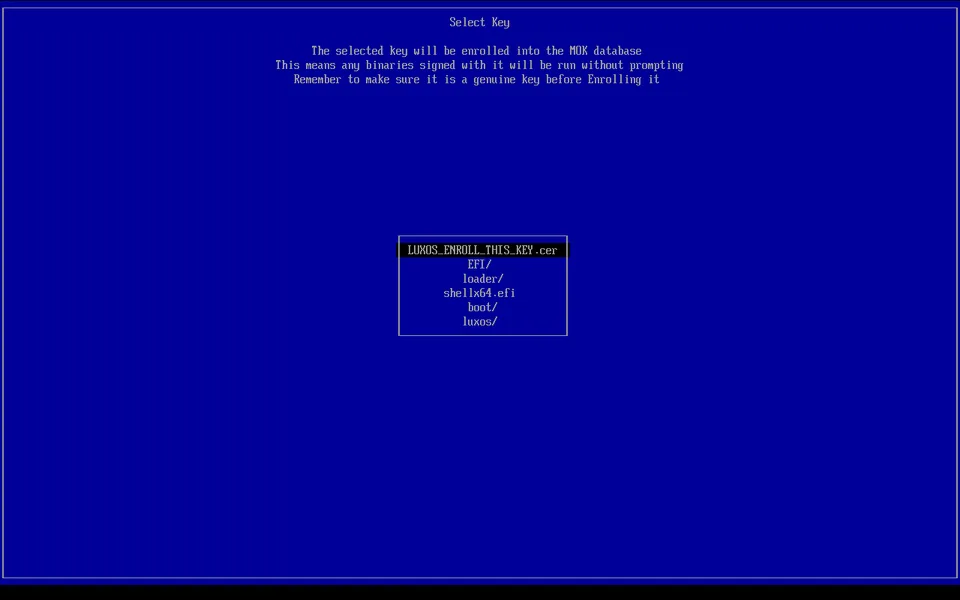
LUXOS_ENROLL_THIS_KEY.cer and confirm.Try and install
- Plug in the stick, switch the computer on and open the boot menu – usually F12, F11, F8 or Esc.
- LuxOS starts from the stick. Try Wi-Fi, sound and graphics.
- Start Install LuxOS. Choose the whole disk, free space next to Windows (dual boot) or an existing partition, optionally with encryption.
- After installation LuxOS updates itself in the background; every update can be undone.
Details: installing LuxOS. Coming from Windows 10? Read what works and what does not first.
Common questions
Is LuxOS free?
Yes. The ISO is free to download and use, with no registration and no paid edition. Most of LuxOS is open source under GPL-3.0-or-later.
Do I have to turn off Secure Boot?
No. LuxOS starts with Secure Boot on. On the first start from the USB stick the computer asks once to trust the LuxOS key, which takes under a minute.
Can I try LuxOS without installing it?
Yes. LuxOS runs straight from the USB stick. Nothing on your disk changes until you start the installer and choose where to install.
Which file do I need?
Only the ISO file. SHA256SUMS, the .sig signature and the LuxOS key are for checking that the download is complete and genuine.